Michel, you can do that using the ClockTimerWidget, you don't need to use Visual Logic for this.
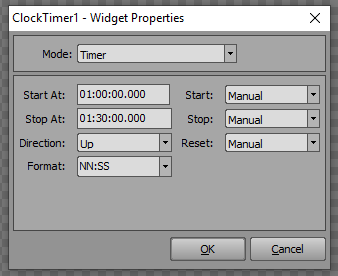
Inside the Widgets-window, you create a new widget called "Clock Timer". Then right-click that widget and select "Properties".
In the Mode, by default, it will have "Realtime Clock" selected, but you can change that to "Timer".
Then you can set up the start time and the stop time. Not that you have to set it as HH:MM:SS in the Start At-field so (00:45:00) and in the Stop-At you have to put in 01:30:00, but that's just to set it up. You can have it display any way you like. SO in the case for football you can set the Format to "NN:SS".
The next thing to do, is that you need to link this timer to your textfield. So select the textfield, and go to the tab called "Data Source". In there you select "Widget" as the source and in the drop down, you select the name of your timer widget.
The content of your textfield will be replaced by the time of the timer. So when you start the timer, you will see the textfield will update. And by using NN:SS you will see it will display all the way up to 90'.
Just for clarification. If you don't want the clock to stop at 90:00 but continues in the extra time, just leave the Stop-At at 00:00:00, this way it will continue to count.
In the format it's "NN:SS" and not "MM:SS" because "MM" stands for the months in a date, so minutes are represented by "NN".
If you don't want to see 01:00, 02:00, 03:00 etc... you can also set "N:SS" as the format. This way there will be no zeroes in front of the single digits so it becomes 1:00, 2:00, 3:00 etc...
#XPression