Hi Rob.
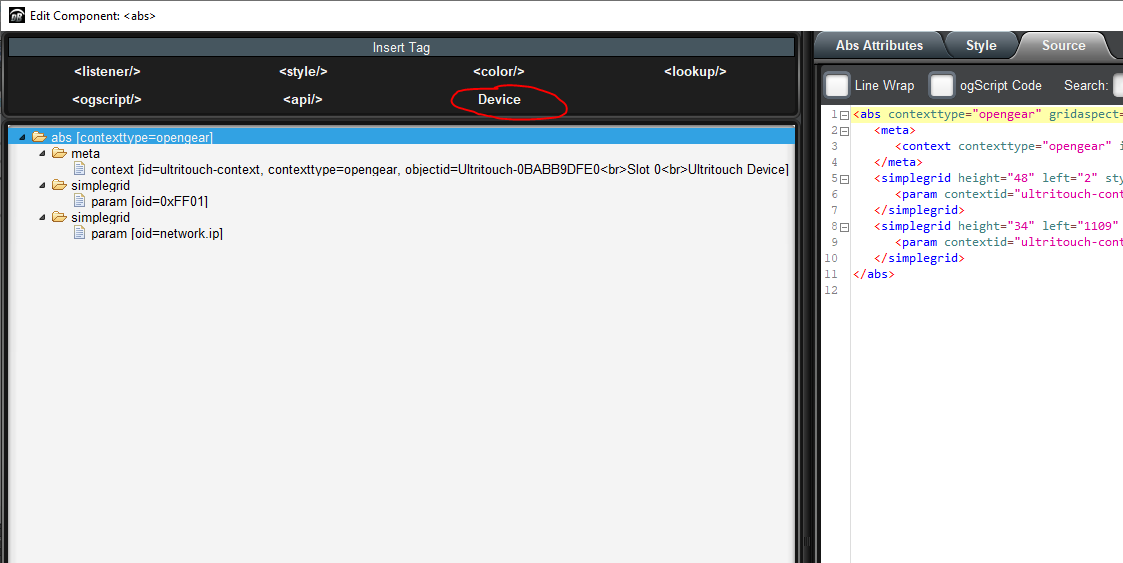
I would recommend starting with a specific Ultritouch and adding it as a "Device" to your CustomPanel:
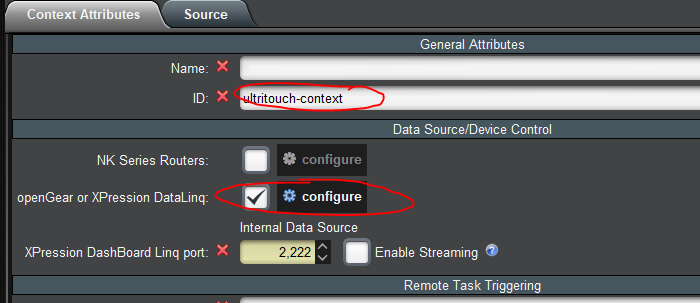
Make sure you give the new context an ID and select "Configure"
Select your Ultritouch from the tree:
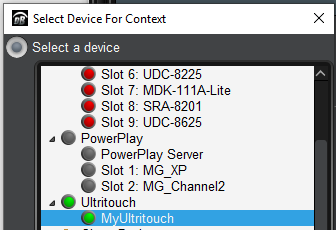
Once selected, choose "Apply/Close" and refresh the panel (F5)
Select the "Add Parameter to Panel" option from the toolbar, draw where you want to name to go, and search for "FF01" (the Device Display Name)
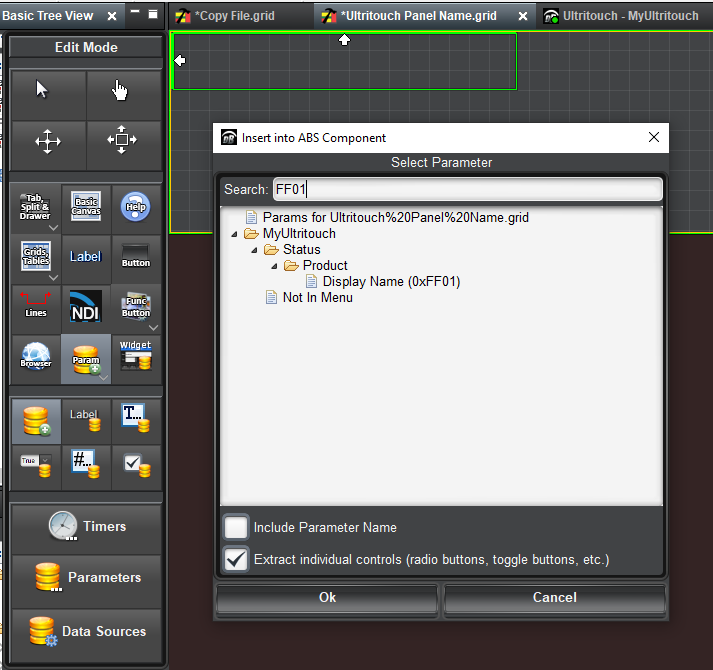
Double-click on the text field and change the widget hint from "Text Entry" to "Label"
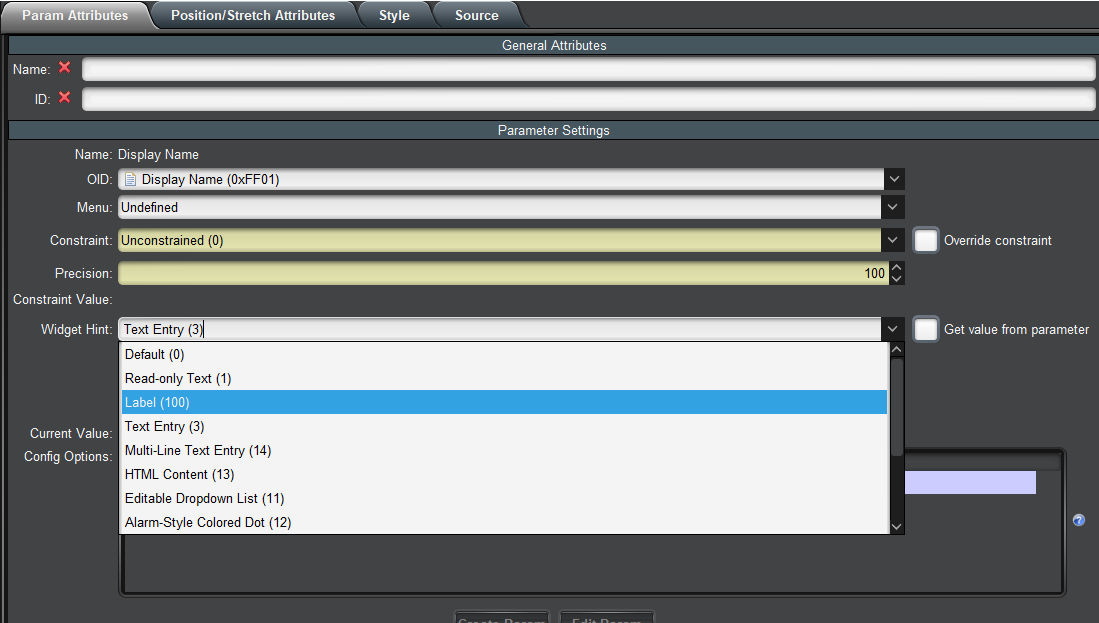
Add additional parameters as you desire.
Once you're done, we are going to point it at Ultritouch's internal device instead of a specific device. This requires a bit of a trick in the source code. You'll need to replace the Ultritouch's unique identifier with Ultritouch's internal idenfitier - it's this part of the context ID:

You'll want to replace everything in the "objectid" attribute before the "<br>Slot 0<br>Ultritouch Device" with "db-ultritouch-frame". Once you do this, the parameters will disappear from the panel until you upload it to Ultritouch.
Here is the example panel I was working from:
<abs contexttype="opengear" gridaspect="false" gridheight="203" gridwidth="1304" touch="true" virtualheight="203" virtualwidth="1304">
<meta>
<context contexttype="opengear" id="ultritouch-context" objectid="db-ultritouch-frame<br>Slot 0<br>Ultritouch Device" objecttype="Ultritouch Device"/>
</meta>
<param contextid="ultritouch-context" expand="true" height="56" left="4" oid="0xFF01" showlabel="false" style="font:bold;size:Bigger;" top="3" widget="label" width="343"/>
<param contextid="ultritouch-context" expand="true" height="33" mid="256" oid="network.ip" right="3" showlabel="false" style="bg#dark;bdr:etched;fg#FFFFFF;" top="2" width="192"/>
</abs>
Hope this helps.
James
#DashBoard